
Projects & worktrees
A project is a folder you work in. New sessions start in a project.
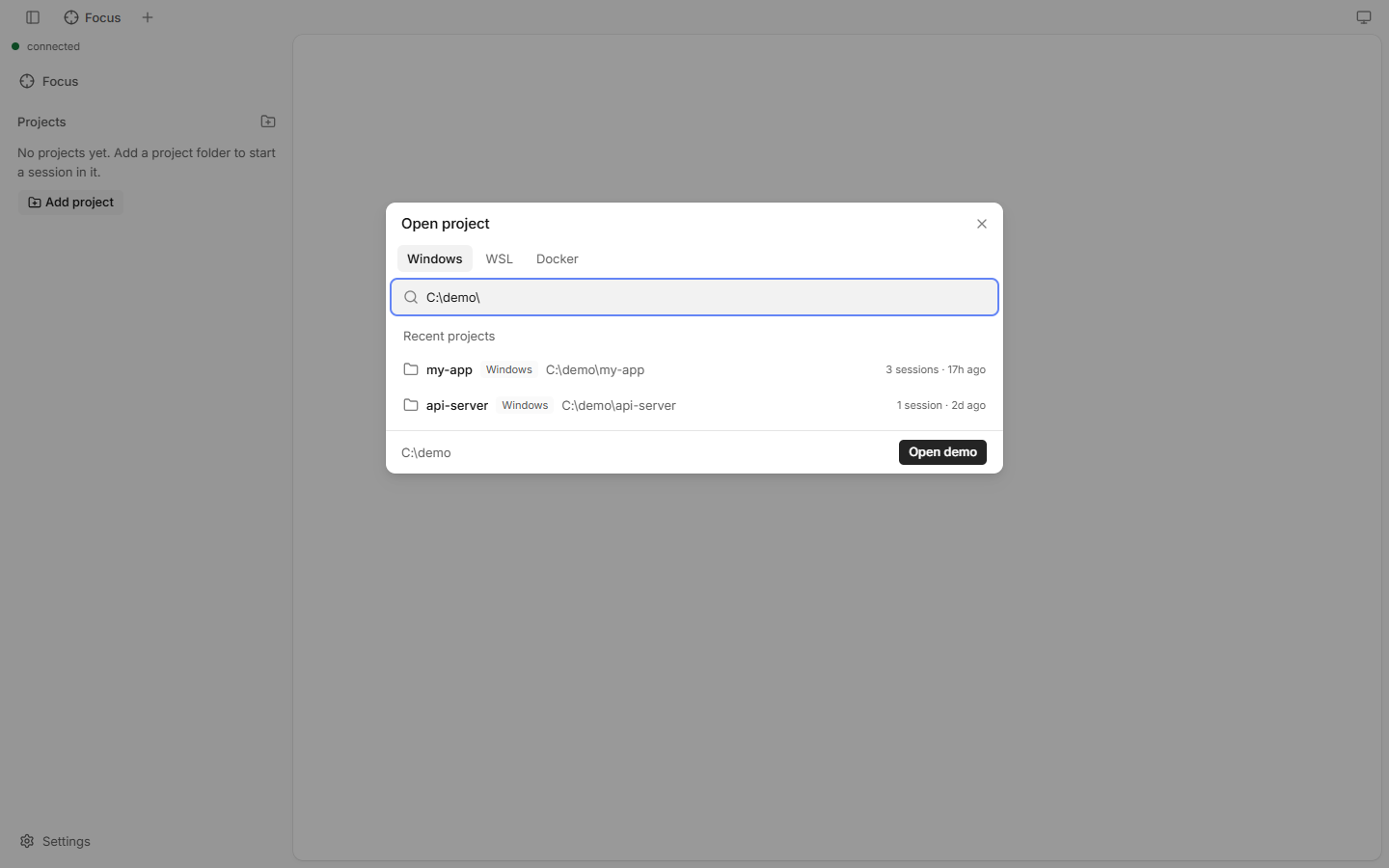
How to open a project
- Click Open project (the folder icon next to Projects in the sidebar).
- Pick a recent project, browse to a folder, or type a path.
- The project shows in the sidebar. Start a session in it.
How to remove a project
- Open the project's menu in the sidebar and choose Remove from list (files stay).
- This only hides it. Files and session history stay.
Worktrees
A worktree is an extra git checkout of the same repository, on its own branch. Use one to let Claude work on a branch without touching your main checkout.
- Hover the project row and click New worktree (or run "New worktree…" in the command palette).
- claude-code-ui creates it in
.claude/worktrees/of the repository and shows it under the project. - Start sessions in it like in any project.
To remove a worktree, click its trash icon (on a phone: its menu › Delete worktree…).
Projects header buttons
| Button | Does |
|---|---|
| Open project | Adds a project. |
| Select active session | Scrolls the sidebar to the session you are looking at. |
| Expand all / Collapse all | Opens or closes every project (desktop). |
Sidebar options (⋯) | Layout, show only active sessions, and more. |
Good to know
- You can only open folders inside the allowed roots (default: your home folder). See
--roots. - Folders that only have sessions from the
claudeCLI show as recent projects until you open them. - Only worktrees under
.claude/worktrees/can be removed from here. Before it removes one, it tells you how many uncommitted changes and commits you would lose. - With WSL or Docker, Open project also lets you pick a side. See WSL & Docker.