
Settings
Open Settings with Ctrl+, (⌘ , on Mac) or the Settings button at the bottom of the sidebar. Pick a group on the left.
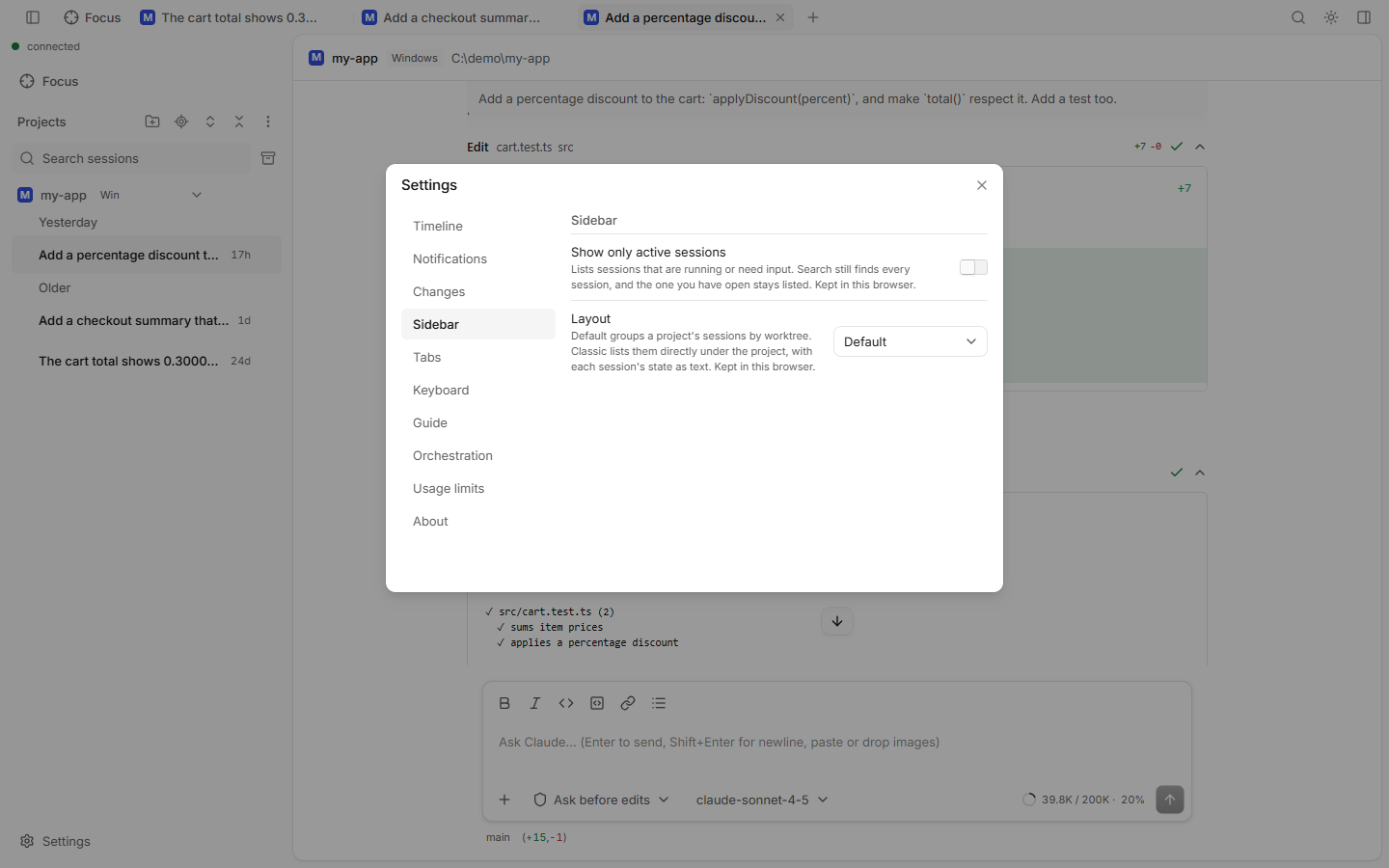
Most settings are kept in this browser only. Orchestration, Usage limits (except the ring) and desktop notifications are saved in the daemon and apply to every browser.
Timeline
| Setting | Does |
|---|---|
| Signal only | Folds each run of tool calls into one line, like "4 tool calls · Read 3 · Grep 1". Your prompts, Claude's text, errors and waiting requests stay. Also Ctrl+Alt+S. |
Sending
| Setting | Does |
|---|---|
| While Claude works, Enter | Steers the turn (default; Alt+Enter queues) or queues the message (Alt+Enter steers). A queued message waits and starts its own turn when Claude is idle. The send button follows the choice. |
Notifications
| Setting | Does |
|---|---|
| In-app notifications | A card in this page when another session needs input or finishes. On by default. |
| Push notifications | Notifications from this browser, also with the page closed. Needs HTTPS or localhost. |
| Desktop notifications on computer | The daemon's computer shows a system notification when no browser has push on. For every browser. |
See Notifications.
Changes
| Setting | Options |
|---|---|
| Default diff view | Session changes, Uncommitted, Against branch |
Sidebar
| Setting | Does |
|---|---|
| Show only active sessions | Lists only sessions that run or need input. Search still finds all. |
| Group by | Worktree groups a project's sessions by worktree. Project lists them right under the project, with their state as text. |
Tabs
| Setting | Does |
|---|---|
| Tab grouping | By project, By worktree, or None |
| Compact tabs | Shows each group as one chip. Open its tabs from the chip. Needs a tab grouping. |
Keyboard
Opens the Keyboard shortcuts dialog, where you can rebind every shortcut.
Guide
Guided tour: restart the short tour of projects, tabs, files, changes, git graph and terminal.
Orchestration
Lets a session start and steer worker sessions. Off by default. Every setting is described on the Orchestration page.
Usage limits
| Setting | Does |
|---|---|
| Continue automatically after a usage limit resets | Sends "continue" to a session that the plan limit stopped, once the limit resets. |
| Usage ring shows | Highest usage, Session (5 h) or Weekly. Kept in this browser. |
About
The version of the web app and of the daemon.
Not in Settings
- Theme: the theme button at the top right cycles System → Light → Dark.
- Model, mode, effort: per session, in the prompt box.
- Server options (port, roots, remote access): CLI flags.